A PTA volunteer sign-up sheet that doubles as your task board
Last updated October 20, 2026
Most PTA events end up run from three places at once. There is a volunteer sign-up somewhere, a task list in the chair’s notebook, and a group chat where both get contradicted. Two weeks out, nobody can answer the only question that matters — what is still not covered? — without reading all three and doing arithmetic.
A PTA volunteer sign-up works far better when the sign-up sheet and the task board are the same document: one link, a section per committee, and every heading carrying a count of what is done and what is still unstaffed. No forms, no logins, nobody making an account to say they’ll run the ring toss — free.
Opens instantly. No account, no email.
Two kinds of row, and the difference is the whole trick
Start a list and name it after the event — Spring Fair — PTA task board. Then put two different kinds of row on it, from the pills under the add box:
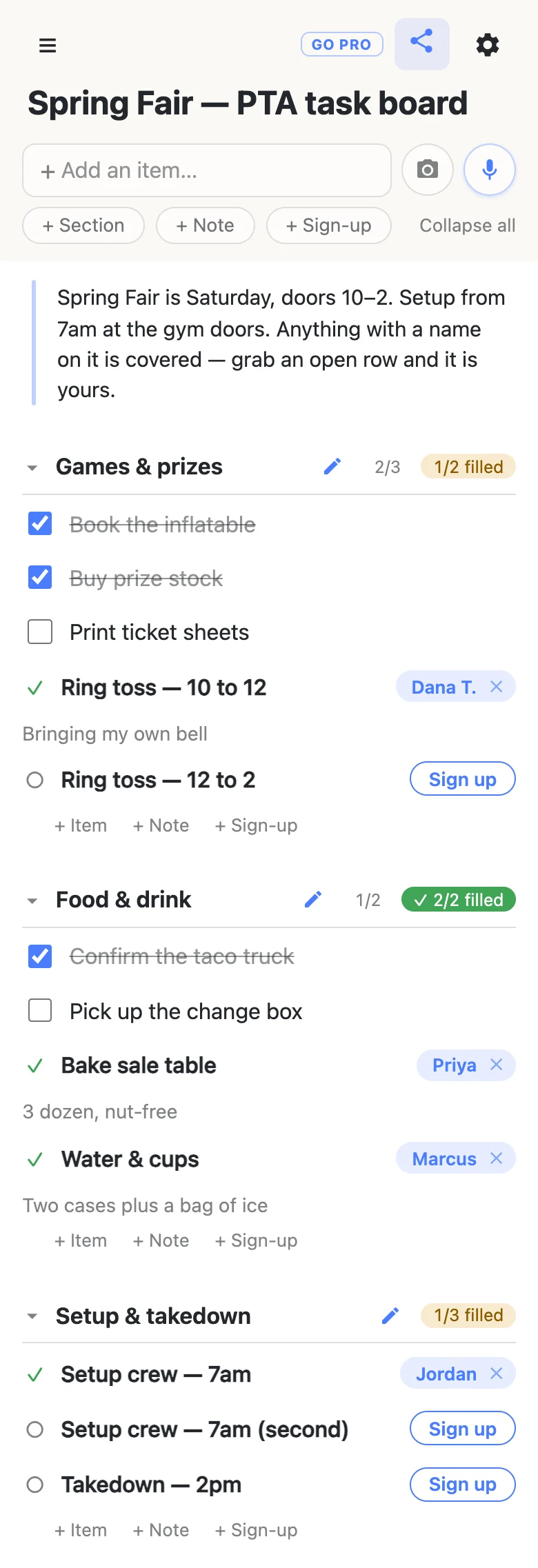
Tasks are ordinary items with a checkbox. They belong to the committee rather than to a person, and somebody ticks them when they’re done: book the inflatable, print ticket sheets, confirm the taco truck. This is the half that used to live in your notebook.
Shifts and jobs are sign-up slots — the + Sign-up pill. A slot has no checkbox at all; it’s a need with a space for a name, and being claimed is its state. Ring toss — 10 to 12 is either spoken for or it isn’t, which is exactly the question a parent opening the link is trying to answer.
The useful part is that both live in the same section, and the heading counts them separately. So a committee reads 2/3 on its tasks and 1/2 filled on its shifts, side by side, and you can tell the difference between “behind on the prep” and “short of people”. Those are different problems and they need different emails.
One section per committee
Add a section for each committee — Games & prizes, Food & drink, Setup & takedown — and the board stops being a list and starts looking like the event. Each section has quiet + Item + Note + Sign-up links at its end, so a committee chair adds their own rows in their own patch without touching anybody else’s.
Put the practical stuff in a note at the top: a long-text block rather than a checkbox, and the right home for the gate code, the setup time, and the sentence that makes an open row feel claimable instead of assigned.
Shift times can go straight in the row text, as above, or you can make them real dates: type something like Saturday 7am and the board offers to attach it as a date chip, which then feeds an agenda view and a calendar feed volunteers can subscribe to. For a one-day fair that’s usually more machinery than the job needs; for a week of book fair shifts it earns its keep.
What the chair actually looks at
The reason to keep the whole event on one link is the two minutes before a committee meeting. Tap the covered committees to fold them away — or Collapse all in the header — and the counters stay on the folded headings. What’s left on screen is a short column that says, without you counting anything: games needs one more person, food is done, setup is two short.
Folding is per device. Your tidied view is yours; nobody else’s board moves.
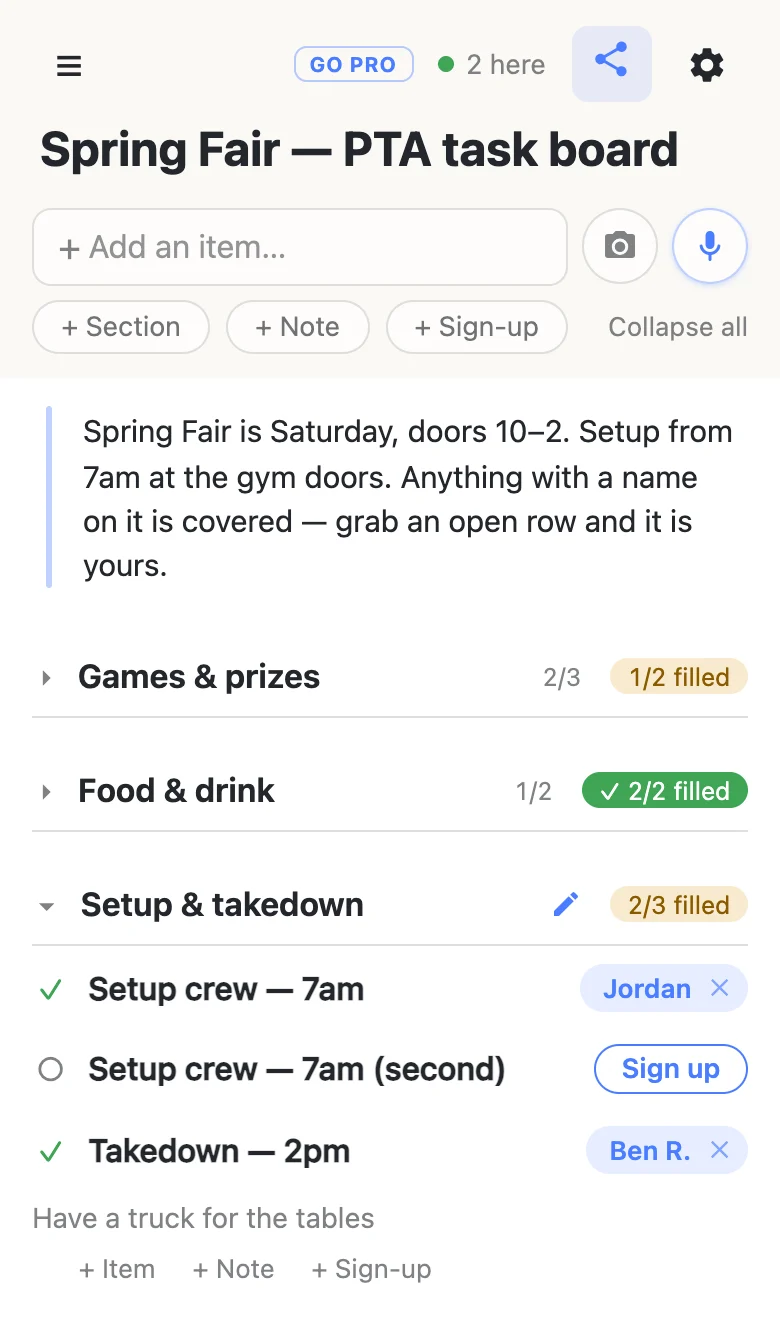
That 2 here chip is live presence: tap it for the names. It matters more than it sounds, because a board is most useful in the hour after the newsletter goes out, when several parents are on it at once. Claims land on everybody’s screen as they happen, so two people looking at the same moment don’t both take the takedown shift.
Sending it out
Share the link — the class group, the PTA WhatsApp, the newsletter, a QR code on the flyer by the office door. There’s nothing to install and nothing to join: a parent taps it, the board opens, and next to anything still open there’s a Sign up button. One tap puts their name on the row, and then the board offers an optional note — “bringing 3 dozen, nut-free”, “have a truck for the tables” — attached to the thing it describes instead of buried in a reply to a reply.
The name is whatever that device calls itself, set once and forgotten. Nothing is verified and there are no accounts underneath it, so a parent can be “Ada’s mum” if they’d rather. People sign up their spouses all the time — tapping a name chip lets you reassign a row, and clearing somebody else’s claim asks you to confirm first.
At the foot of every board is a line saying how many times it’s been visited. It’s a blunt number, as of when the page loaded, but it’s the honest answer to “did anyone actually open the flyer link?” — which is worth knowing before you print another fifty.
When the board goes school-wide
Putting the link in a school-wide newsletter? You may want parents to sign up without rewriting the board.
That’s what owning the list is for. The board stays yours and you choose what visitors may do with it: leave signing up and ticking off switched on, turn adding, editing, deleting and reordering off, and it becomes fill-in-only for everyone but you. Nothing changes for parents — same link, still no account, still one tap. You can add your committee chairs as admins by email so they can fix their own sections, and claim a readable address so the flyer carries something a person could actually retype.
See what anonylist pro does Only you need an account. Everyone else still just opens the link.
Handing it to next year’s chair
PTA boards have a yearly problem that most tools handle badly: the person who built it leaves. On a plain board the handover is the link, and that’s genuinely all of it — there’s no account holding it, so there’s nothing to transfer and nothing to lock them out of.
On a board you own there’s a real handoff. Add the incoming chair as an admin by email; once they’ve signed in, you can transfer ownership to them, which needs them to have an active pro subscription of their own. You stay on as an admin, so you can still fix a typo in September.
Either way, do one thing before the year turns over: export the board (gear → Export & import). The file carries the rows, the sections and the names on them, and it’s the only copy that doesn’t depend on us. Next year you can import it into a fresh list, or — for a standing rota rather than a one-off event — tick Overwrite when you import, which clears the current rows and puts the saved shape back in place on the same link. That one deletes everything on the board for everyone, so it asks you to confirm and then reads “Replace with N rows” rather than pretending to be safe.
Keep the board running smoothly
- Keep it to what it’s for. Committees, shifts and the bake sale table. Pupil names, medical details, home addresses and phone numbers stay in whatever the school already runs.
- Fold, don’t delete. Drag a finished row into a Done section rather than deleting it, and the board keeps its record.
- Keep the link handy. Text yourself the link the day you make it — your phone also keeps it in the ☰ drawer — and export a copy from the gear menu (Export & import) whenever you want a file of it.
Questions
- What is the difference between a task on the board and a volunteer slot?
- A task is an ordinary item with a checkbox — it belongs to the committee and somebody ticks it when it is done. A sign-up slot has no checkbox at all: it is a need with a space for a name, and being claimed IS its state. So “Book the inflatable” is a task, and “Ring toss, 10 to 12” is a slot. The practical test is whether you are tracking progress or tracking a person. Both kinds of row live in the same section, and each heading counts them separately — 2/3 for the tasks, 1/2 filled for the shifts.
- Can I see at a glance which committees are still short of people?
- Yes, and that is most of what a chair uses the board for. Every section heading carries its own counters: the tasks as done-over-total, and the shifts as “1/2 filled”, amber while people are still needed and green with a tick once a committee is fully staffed. Fold the covered committees away — tap a heading, or Collapse all in the header — and what is left on screen is a short column of headings and the gaps in them. Folding is per device, so tidying your own view changes nothing for anybody else.
- One board per event, or one for the whole school year?
- One per event works better. A board is a link you paste into a newsletter or a class group, and an event-sized one stays short enough that a parent can read it on their phone at the school gate. A year-long board grows past that in a month, and every parent who opens it for the fair has to scroll past the book sale. The exception is a standing rota — a library desk, a weekly popcorn Friday — which is genuinely one sheet you reuse, and can be reset in place from the gear icon when the term turns over.
- What stops a parent renaming a committee instead of signing up?
- Owning the list lets you choose what visitors may do: leave signing up and ticking on, turn adding, editing, deleting and reordering off, and the board becomes fill-in-only for everyone but you and your admins. The link and the one-tap sign-up do not change for parents.
- How do I hand the board over to next year’s PTA chair?
- On a plain board you send them the link and that is the handover — there is no account holding it, so there is nothing to transfer. On a board you own there is a real handoff: add them as an admin by email, and once they have signed in you can transfer ownership to them, which needs them to have an active pro subscription of their own. You stay on as an admin afterwards, so you can still fix a typo in September. Either way, export the board first (gear → Export & import) — the file carries the rows and the names on them, and it is the only copy that does not depend on us.
Opens instantly. No account, no email.