Organize a shared list with sections
Last updated September 7, 2026
Every shared list starts as one column of rows, and that’s fine for eleven things. At forty it isn’t: people scroll past what they were looking for, add something that’s already three rows down, and stop reading the bottom half entirely. Sections fix that by turning one long list into a few short ones — a heading with rows under it, a done counter beside it, and a fold so you can put away the parts you aren’t working on right now.
They’re part of every anonylist list, free, with no account to make. Here’s the whole feature: adding one, filling it, moving it, folding it, and what happens to the rows if you delete it.
Opens instantly. No account, no email.
Add a section and name it
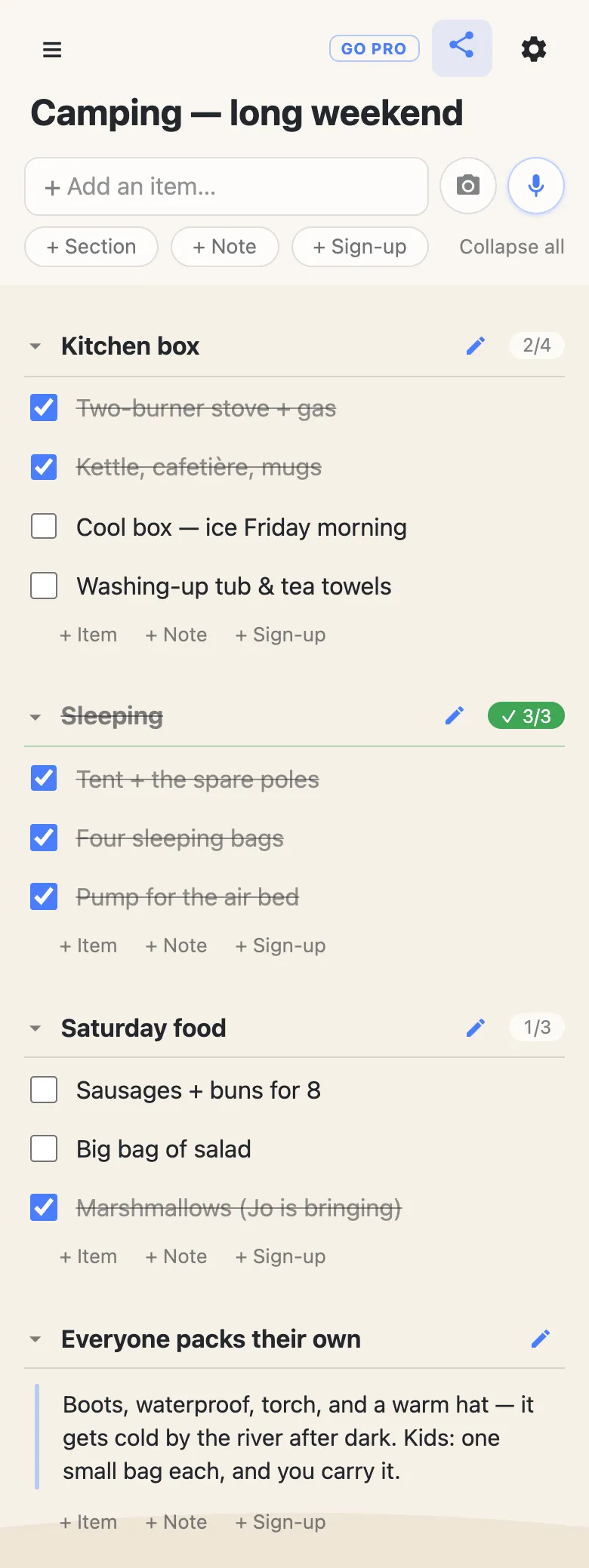
Under the add box at the top of the list there’s a + Section button. Tap it and a new heading appears above your other sections with the cursor already sitting in its name — type “Kitchen box” or “Saturday” or “Ben’s jobs”, press Enter, and it’s there for everyone on the list.
Headings are free-form. Aisles, rooms, days, people, phases of a job: anything you’d otherwise write in capitals in the middle of a list and hope people noticed.
Fill a section without going back to the top
At the end of every section sit three quiet links: + Item, + Note, + Sign-up. They add a row straight into that section, so you don’t have to add it at the top of the list and then drag it down. Pressing Enter commits the row and opens another one of the same kind underneath, so you can type a whole aisle in one go — and a row you leave empty just quietly disappears.
Sections aren’t only for checkboxes. A note block gives a section its instructions (“boots, waterproof, torch — it gets cold by the river”), and a sign-up slot makes it a place people claim jobs. Rows that already exist can move in too: press and hold one and drop it under the heading you want.
The whole group moves in one drag
A section header drags like any other row — press and hold it anywhere, and it lifts. What moves is the whole group: the heading and every row under it travel together, so putting “Saturday food” above “Sleeping” is one gesture rather than a dozen. That’s the practical reason to group a list you’re going to re-order a lot. Dragging is covered in full here.
Fold what you’re not using — on your screen only
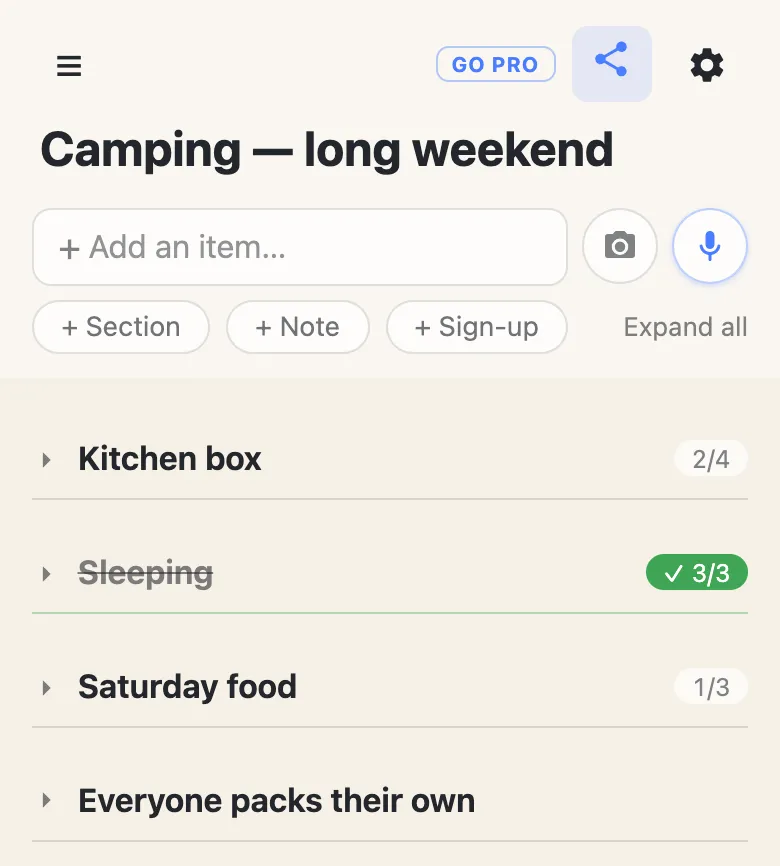
Tap a section heading and it folds shut; tap it again and it opens. Folded, the list becomes an outline — four headings you can take in at a glance instead of forty rows. There’s a Collapse all link beside the add buttons that does the lot at once, and it flips to Expand all when everything is shut.
Folding is per device, and that is deliberate. Collapsing “Kitchen box” tidies your screen and nobody else’s — otherwise the person shopping one aisle would keep rearranging the list somebody else was reading from. Your folds are remembered on your own device, so the list looks the way you left it when you come back. (The first time you open a list with sections on a new phone they all start folded, so you get the outline first and open what you need.)
The counter says where the work is
Each heading carries a small counter — 2/4 — of how many of its items are checked off. Finish them all and it turns green with a ✓ and the heading itself goes quiet, struck through, which is what makes a folded list readable: you can see that sleeping gear is done and food isn’t without opening either one.
A section holding sign-up slots gets its own counter instead — 2/5 filled — so a rota shows its gaps from the outline. Notes don’t count toward either, since a paragraph isn’t a thing anyone can finish.
Renaming and deleting keep the rows safe
To rename a section, tap the pencil on its heading (tapping the heading itself folds it — that’s the more common thing to want). To delete one, clear its name and press backspace, the same gesture that deletes an empty item.
Deleting a section keeps everything under it. The heading goes and the rows move up into the ungrouped part of the list at the top, still checked or unchecked exactly as they were. Deleting a heading undoes the grouping; it never throws away the work. That’s worth knowing on a list other people are using, because deleting a row is permanent once its five-second undo has passed.
Everyone sees the same sections, live
An anonylist list is a link, and everybody holding it sees the same rows update as they change. Sections are part of that: add one and it appears on every open phone straight away, drop an item into it and it lands there for everyone. The one thing that stays yours is the folding.
That equality is the default and it’s the right one for a household or a group of friends. If you’re running a list for a bigger group and you’d rather visitors filled sections in without being able to rename or reshuffle them, an owned list on anonylist pro lets you switch each of those off — see a shared checklist where you choose what others can change.
Questions
- How do I add a section to a shared list?
- Tap the + Section button under the add box at the top of the list. The new heading appears above your other sections with the cursor already in its name, so you can type it and press Enter. From there, press and hold it to drag it into position, and add rows to it from the quiet + Item link at its end.
- Does folding a section hide it for everyone else?
- No. Folding is per device on purpose: it changes your screen and nobody else’s. Two people can read the same list at completely different levels of detail, and the person shopping in one aisle can’t accidentally collapse the list somebody else is working from. Your folds are remembered on that device, so the list looks the way you left it when you come back.
- What happens to the rows in a section if I delete the section?
- They stay. Deleting a section removes only the heading — every row that was under it moves up into the ungrouped rows at the top of the list, still checked or unchecked exactly as it was. Deleting a heading is undoing the grouping, not throwing away the work under it.
- Should I use sections or make separate lists?
- Use sections when the same people need the whole picture — a trip where the kitchen box and the sleeping gear both have to be in the car. Use separate lists when the audiences are different, since a list is a link and sending someone a link hands them all of it. If the rows are read by the same group at the same time, one list with sections is easier to share and easier to scan than two links to keep track of.