A shared moving checklist you and your partner both edit
Last updated October 20, 2026
Moving house is one job run by two people in different rooms, and the checklist almost never keeps up. One of you starts it in a notes app, the other keeps a running list in their head, and the gap between them turns into texts — did you cancel the internet?, is the ladder still going back to Marcus? A shared moving checklist fixes that by being one thing at one link, open on both phones, updating as either of you touches it. No accounts, nothing to install, free.
Opens instantly. No account, no email.
Make the sections your rooms
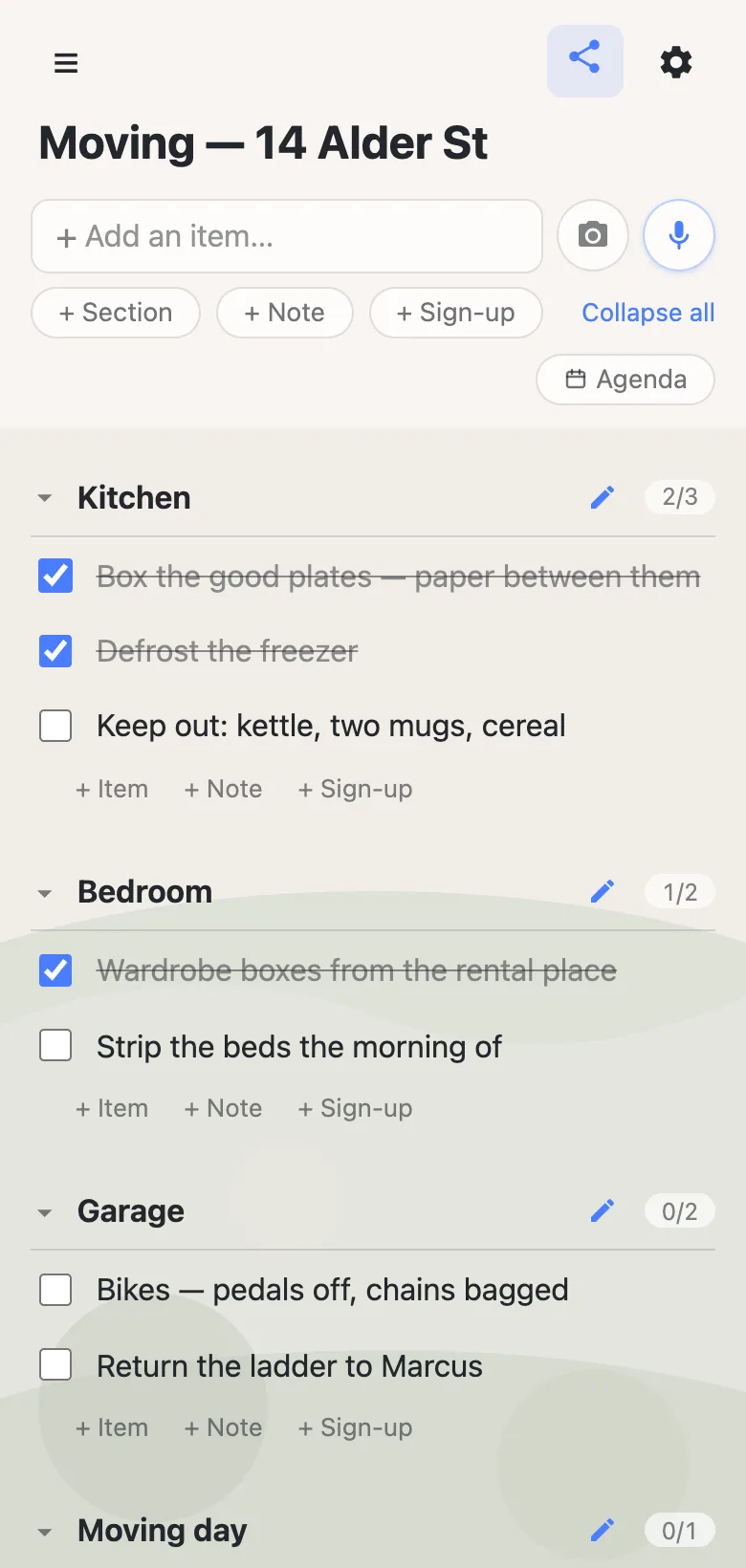
Start the list, name it after the address, and add a section per room: Kitchen, Bedroom, Garage, plus one for the things that only happen on the day. Rows go under the room they belong to, and each section header carries its own counter — 2/3, 0/2 — so a glance down the list tells you which rooms are done and which haven’t been started. Nobody has to ask.
Rooms drift as a move goes on, and the list moves with them. Press and hold any row to pick it up and drop it in another room; hold a section header and the whole room travels with its contents in one drag. And collapsing a section is per device on purpose — you can fold away everything but the garage while your partner keeps the kitchen open, and neither view disturbs the other.
One packs, one hauls, and both of you see it
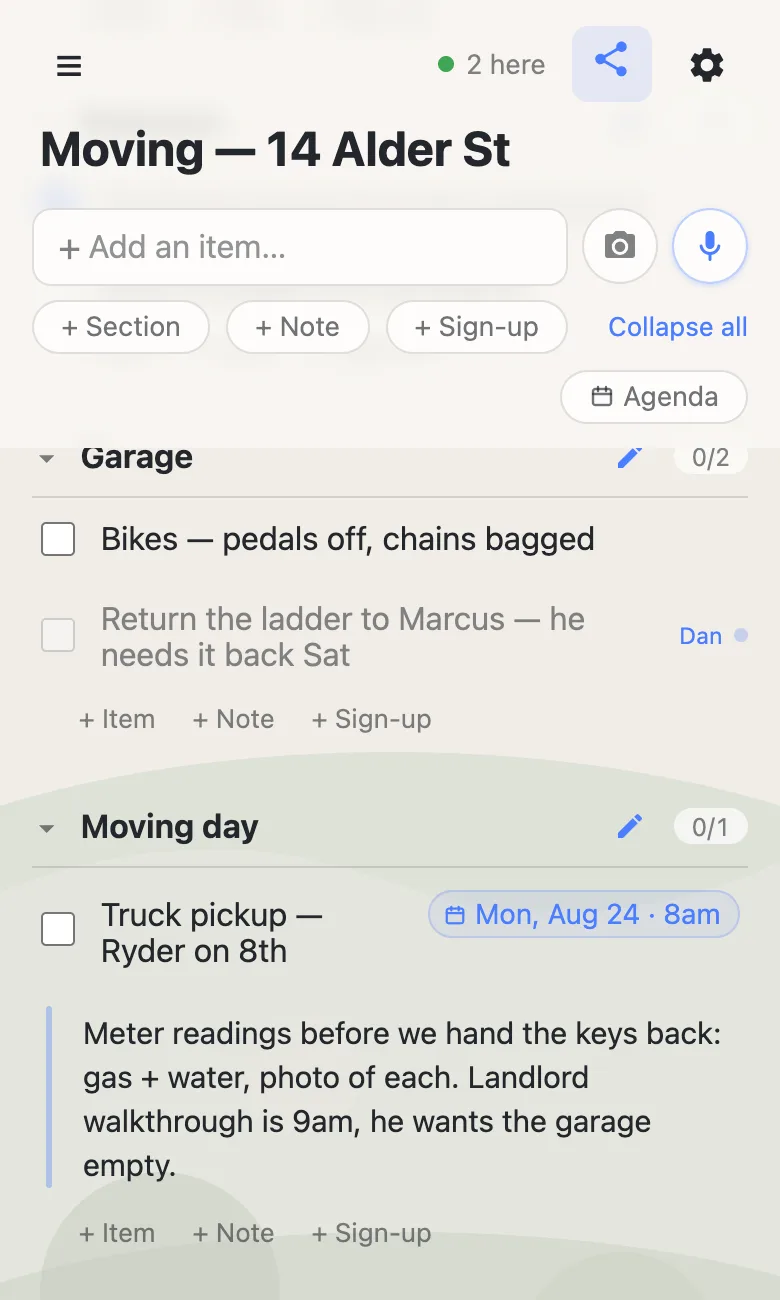
The point of a shared list is what happens when you’re not in the same room. Tick “defrost the freezer” in the kitchen and it strikes through on your partner’s phone in the van, with no refresh and no send button. When you’re both on the list at once a small 2 here chip appears in the header; tap it and it names who’s on — the names are whatever each device calls itself, since there are no accounts underneath.
Editing the same row at the same second is the one genuinely awkward case, and the list heads it off: while someone is typing in a row, their name and a pulsing dot sit at its end and the text greys out for everyone else. You can see the sentence being written rather than fighting over it.
The parts of a move that aren’t checkboxes
Some of a move is instructions, not tasks. Those go in notes — long text blocks that sit between rows: meter readings to take before the keys go back, what the landlord wants left in the garage, the lettings agent’s number. Paste a URL into a row and it becomes a tappable chip, so the truck booking or the storage unit’s opening hours live on the list instead of buried up the group chat.
Dates work the same way — you type them rather than pick them. Write “Truck pickup — Ryder on 8th monday 8am” and a chip offers you Mon, Aug 24 · 8am; tap it and the date pins to the row’s right edge, ignore it and your words stay plain text. Once anything is dated an Agenda button appears, which regroups the same rows under Today, Tomorrow and the days after — useful in the last week, when the list stops being about rooms and starts being about hours. If one of you lives in a calendar, the gear icon has a Calendar feed link that Apple or Google Calendar can subscribe to.
Getting the paper list in
Most moves already have a scrap of paper on the counter. The camera button beside the add box photographs it and reads the rows back to you — headings on the page become sections — and nothing is added until you’ve ticked through what it found. It’s a faster start than typing out a page you already wrote once, and the review step means a misread word costs a glance rather than a mess on a list you both depend on.
Keep the list running smoothly
- Keep it to what it’s for. Boxes, rooms and who’s driving the van. Door codes, account numbers and meter passwords belong somewhere built to hold secrets.
- Fold, don’t delete. Tick rows off rather than deleting them, and the list keeps a record of what got done.
- Keep the link handy. Text yourself the link the day you make it — your phone also keeps it in the ☰ drawer — and once the move is over, export the list from the gear menu (Export & import) to keep it.
Questions
- Should we make one moving list or one per room?
- One list, with a section per room. Splitting rooms into separate lists means separate links, and the link is the whole sharing mechanism — two of them is exactly the problem you started with. Sections collapse per device, so each of you can fold away the rooms you aren’t working in without changing what the other sees.
- Can we let a friend or a relative see the list on moving weekend?
- Yes — send them the same link. There is nothing to invite them to and no account for them to make, and they can tick things off like anyone else. That cuts both ways: everyone holding the link has the same powers you do, so hand it out with that in mind.
- Is it safe to put our new address in it?
- Usually, yes — anyone helping you move is going to know it. Account numbers, door codes and meter passwords belong somewhere built to hold secrets.
- Can we save a copy of the checklist after we’ve moved in?
- Yes. The gear icon has Export & import, which downloads the whole list as a readable JSON file — rooms, rows and what got ticked. It’s a good thing to do once the move is done, so the record lives on your own disk.