anonylist › Docs
How anonylist works, part by part
Every part of a shared list, grouped by what you’re trying to get done. Open a row to see it working — the pictures are recordings of the real thing, not drawings of it.
None of this needs an account, yours or anyone else’s. If you’d rather read about a whole job than a single part — running a potluck, planning a week, sharing a checklist with people who won’t sign up — the guides are the other half of this.
Opens instantly. No account, no email.
Getting it to other people
The link is the listSend it and they’re in — no account, nothing to accept.
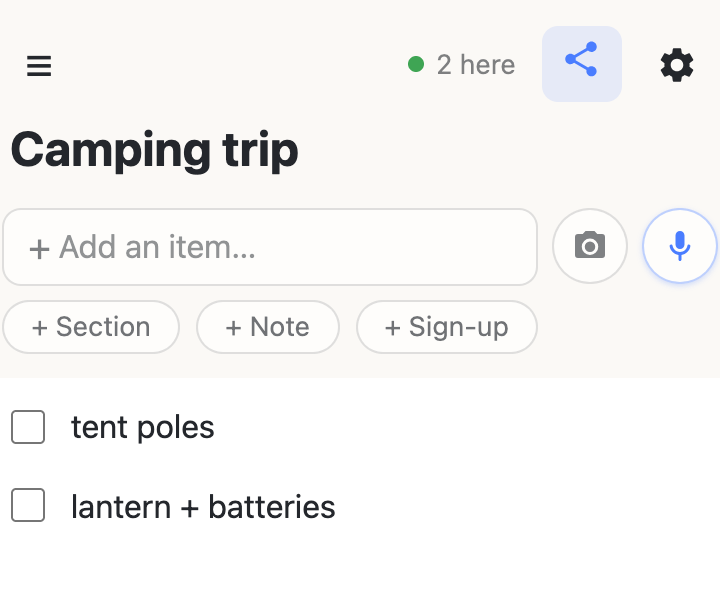
There is no invite, no permission screen and no “Dana has joined” email. Copy the address from the gear menu and send it however you already talk to people. They open it and they’re editing — the same list, at the same moment, changes appearing as they arrive.
While somebody is typing in a row, that row greys out on everyone else’s screen with their name beside it, so two people don’t quietly overwrite each other.
Anyone holding the link can do anything on the list, including deleting rows. That’s the trade the whole thing is built on: a list nobody has to sign up for is a list anybody with the address can change.
Who else is hereNames on the people editing beside you.
Pick a display name and the list uses it: rows you’re editing show “Dana is typing…” to everyone else, and the chip at the top of the list opens a roster of who’s on it right now. Skip the question and you get a generated name like Quiet Otter.
That name lives in your browser and is never stored on the list. Change it, or roll a new one, whenever you like.
A password on the listA gate for people who don’t have the link.
You can put a password on a list from the gear menu. Anyone opening it is asked before they see anything, and the answer is remembered on their device so they’re not asked again.
This is a gate, not privacy. It keeps a stray visitor out; it isn’t encryption, and anyone who has the password can also remove it. Don’t put anything on a list that would hurt to lose control of.
A custom addressTrade the random link for a readable one.
A new list gets a random address like 9f2k-x1c8. You can claim a readable one instead — something you can say out loud at the end of a meeting.
Claiming an address needs anonylist pro and a list you own. Addresses claimed before that stay exactly as they are.
Addresses are never recycled. Once a name has belonged to a list it stays taken, even after that list is gone, so an old link can never quietly land on somebody else’s list.
Putting things in
Add anythingType in the box up top and hit return.
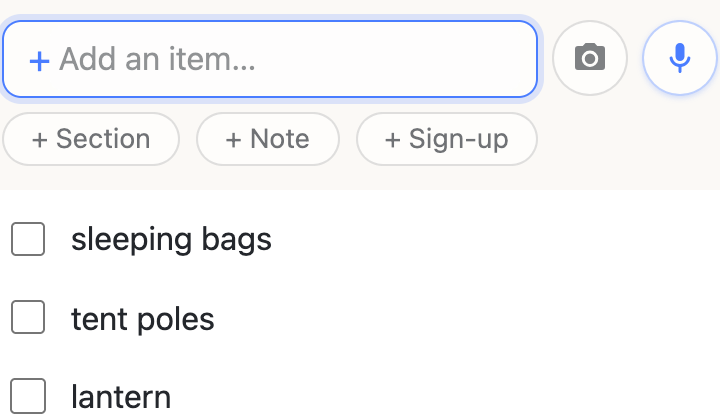
The box at the top of every list is the way in. Type and hit return — on a phone the keyboard’s Go key does the same thing. New rows land at the top of the list, not the bottom, because the thing you just thought of is usually the thing you’re about to deal with.
What you’re typing stays in the box until you commit it, so a half-finished thought never appears on anybody else’s screen.
Edit a rowTap to select it, then tap the pencil.
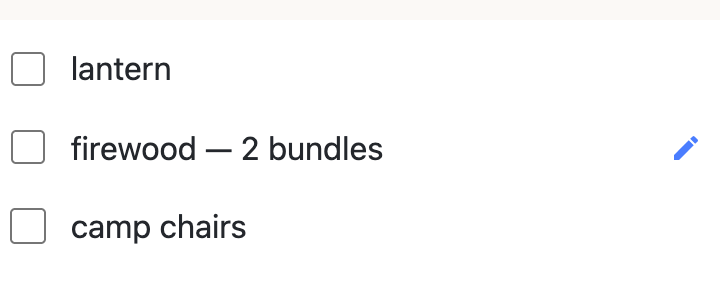
Editing takes two taps on purpose. The first selects the row and reveals a pencil; the second opens it. On a list other people are using, a stray thumb shouldn’t be able to rewrite somebody’s shopping.
Return, Escape, or tapping away all close the row.
Clearing a row’s text and pressing backspace once more deletes it. There’s about five seconds to undo, and after that it’s gone for everyone.
NotesA long-form block for what isn’t a checkbox.
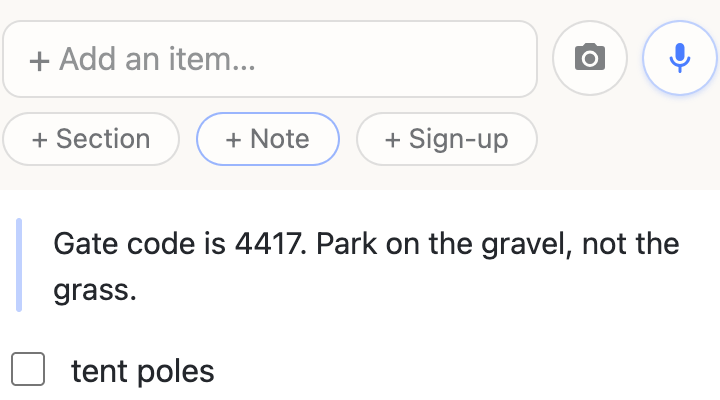
Some things on a list aren’t tasks. The gate code, the address, what to say at the desk. + Note adds a block of text that sits in the list like any other row — draggable, sortable, filed into a section — but with no checkbox, because there’s nothing to finish.
Return inside a note makes a new line rather than a new row. Escape gets you out.
Sign-up slotsA row somebody claims, with a note for what they’re bringing.
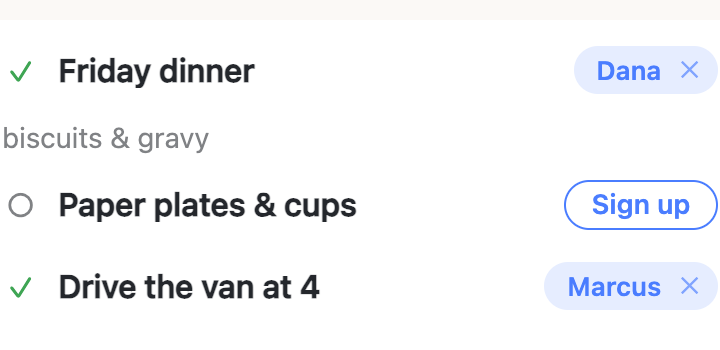
A sign-up slot is a row with a need on it instead of a checkbox. “Friday dinner.” “Two dozen cups.” “Someone to drive the van at 4.” Anyone with the link can claim one, add a note saying what they’re actually bringing, or claim it for somebody else — people sign up their spouses constantly, so tapping a name reassigns it. Sections count them, so a sheet says “2 of 4 filled” at a glance.
Names are self-reported. There are no accounts here, so a slot records what somebody typed, not who they are. Clearing another person’s claim asks you to confirm first; that’s the only guard, and it’s deliberate.
What is a sign-up sheet, and how does one work? →
Signing someone else up →
DatesType the date the way you’d say it, or press @.
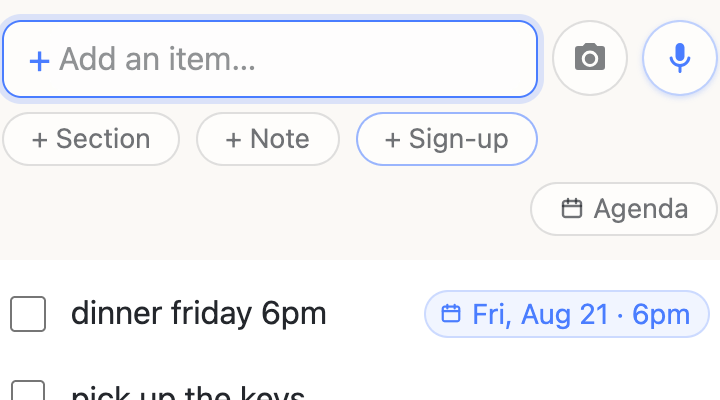
Write “dinner friday 6pm”, or “deposit due the 19th”, and a small prompt offers to attach the date it thinks you meant. Accept it and a chip pins to the right of the row; ignore it and it goes away on the next keystroke. If the date isn’t in your words, type @ and a calendar opens — today, tomorrow, this Saturday, or any day you like, with an optional time. To change a date later, tap the row to select it, then tap the date chip.
A date exists only because somebody confirmed it. Nothing on a list is interpreted behind your back, so a wrong guess costs you a dismissal rather than a wrong time on a plan other people are reading.
Times have no timezone attached — 6pm means 6pm where the thing is happening. That’s the right answer for a dinner and the wrong one for a call across three countries.
LinksPaste an address and it becomes a tappable chip.
Paste a web address into an item or a note and it becomes a chip you can tap. A small prompt offers to give it a name, so a row can read “Menu — the bakery” instead of forty characters of URL.
Tap the row first, then the chip, to open it. On a row that isn’t selected yet a tap just selects it, so a thumb landing near a link never launches a browser tab you didn’t ask for. While you’re editing, tapping a chip offers rename, copy or unlink.
Import a photoPhotograph a written list and get the rows.
The camera button beside the microphone reads a photographed list — paper, a whiteboard, a screenshot of somebody’s text. Headings in the photo become sections.
Nothing is added until you say so. You get a review sheet of what was read, with everything tickable, because a misread photo should cost you a glance rather than a cleanup on a list other people are standing in.
The assistantSay or type “add milk, eggs and bread”.
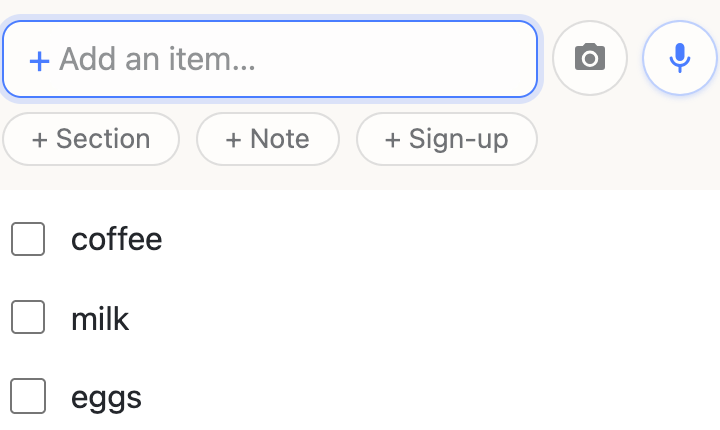
The microphone beside the add box opens a command box. Speak or type it — “add milk, eggs and bread”, “check off everything in produce”, “make a section for Sunday”. Where the browser supports dictation it streams into the box as you talk and sends itself after a few seconds of quiet.
It can add, edit, check and organise. It cannot delete anything, reorder your list, or touch the password — those aren’t in its reach at all, by construction rather than by instruction.
ChatGPT and ClaudeAsk your own assistant for a list, and get a link back.
anonylist connects to ChatGPT and to Claude, so you can ask the assistant you already use: “make a shared grocery list with milk, eggs and coffee, and give me the link”. It hands back an ordinary list address you can send to anyone — they open it in a browser and edit it with no account, no app and no assistant of their own.
It can also work on lists that already exist: add to them, tick things off, read one back, and — with pro — build sections, notes and sign-up sheets, put dates on rows, and delete rows.
Setting it up takes about a minute and the steps differ per assistant: add it to ChatGPT or add it to Claude.
An assistant can do what your hands can do on a list, and no more. It cannot reorder rows, set a password or claim an address — the same absences the in-app assistant has. Deleting is offered switched off when you connect, and stays yours to turn on or off from your account page.
Keeping it in order
Check things offA checked row locks its text.
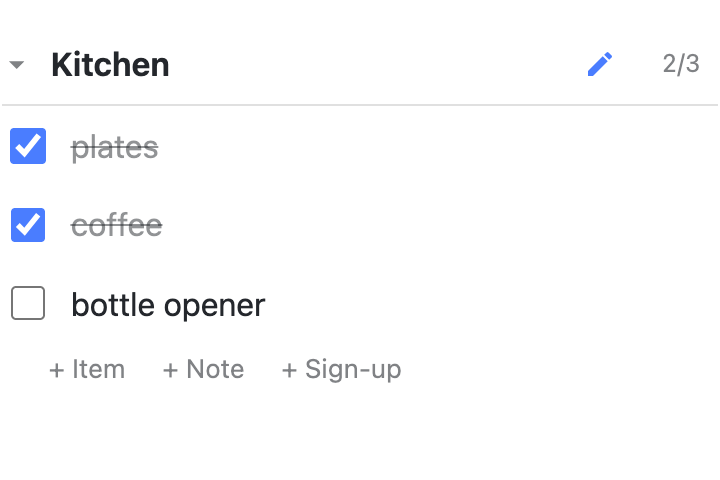
Checking a row freezes its text, so “2% milk” can’t quietly become something else after you’ve already bought it. Because that’s a real change to what the row says, checking asks first. Unchecking never does — it just hands the text back.
Sections keep a running count of what’s done, and turn green when everything under them is finished.
SectionsGroup rows under a heading; fold the ones you’re not using.
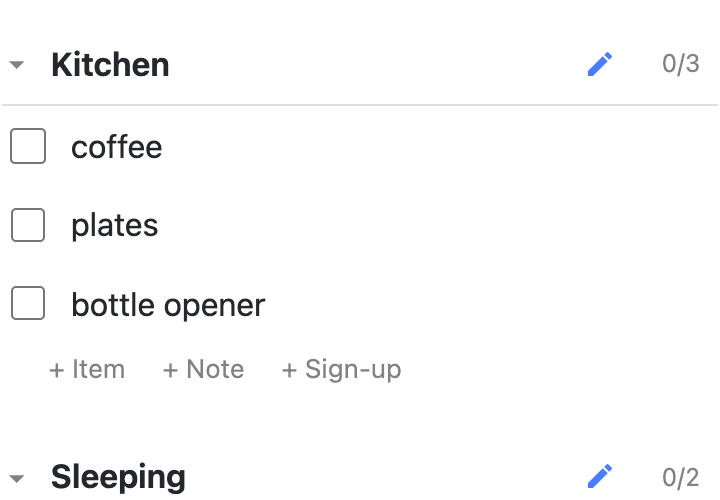
A section is a heading with rows under it — aisles, rooms, days, whoever’s doing what. Each one has quiet + Item + Note + Sign-up links at its end, so you can fill a section without going back to the top of the list.
Folding is per device. Collapsing “Kitchen” tidies your screen and nobody else’s, which means two people can read the same list at completely different levels of detail.
Drag to reorderPress and hold a row, then move it. No handles.
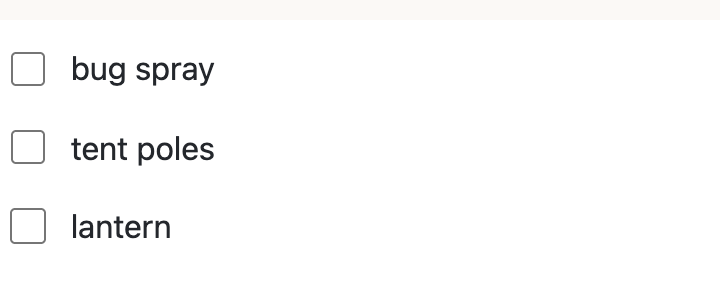
Hold any row for a moment and it lifts under your finger, with a line showing where it will land. There are no drag handles to aim at — the whole row is the handle, which matters when you’re doing this one-handed in a shop.
Moving before the hold takes scrolls the page as normal, so the list never fights you. Dragging a section heading takes its rows with it.
Agenda viewAnything dated regroups the list by day.
Once anything on a list has a date, a toggle appears at the top. Agenda regroups the same rows under Today, Tomorrow and the days after — timed things first — with everything undated gathered at the end.
It’s a different way of reading the same list, not a different list: you can still check things off, claim sign-ups and edit rows from it. Dragging switches off, because in this view the order comes from the dates.
Keeping hold of it
Your listsThe ☰ menu remembers every list you’ve opened.
Every list you open is remembered in the ☰ menu, so you don’t have to keep the links anywhere else. Lists you own or help manage are marked there too.
That memory lives in this browser only — there are no accounts to hang it on. Clear your browsing data or move to another device and it’s gone, which is what Copy all my lists is for. Lists may also be removed after a long stretch with nobody opening them.
Export & importSave the list as a file, or pour one into another.
An app with no accounts still owes you a way out. Export writes the list to a JSON file from the gear menu — sections, notes and sign-ups included — laid out to be read and hand-edited, not just fed back in.
Importing adds to the end of a list and tells you how many rows before it does anything, because it’s writing into something other people are standing in. There’s a separate, clearly-marked way to replace a list’s contents instead, for a sheet you reset every week.
Calendar feedSubscribe to the dated rows from any calendar app.
Anything dated can be subscribed to. Paste the feed address from the gear menu into Google Calendar, Apple Calendar or Outlook and the list’s dates appear alongside everything else, updating as they change.
Open sign-up slots show up as “OPEN — paper plates”, so an organiser’s calendar shows the gaps as well as the plans.
A password-protected list has no feed. A calendar app can’t answer a password, so the feed refuses rather than quietly working around it.
BackgroundsA picture drawn from what’s on the list.
Every new list opens with a quiet background already on it. From the gear menu you can generate one drawn from what the list actually says — a camping list gets pines and a tent — or clear it altogether.
It’s per list and everyone sees the same one. Mostly it earns its place in the ☰ menu, where it makes one list tell itself apart from another at a glance.
With anonylist pro
Owned listsA list with somebody in charge of it.
An ordinary list has no owner — that’s the whole design. A pro list has one. The owner, and the admins they name, hold the powers nobody else gets: the title, the address, the password and the background.
Deleting an owned list becomes undoable, and the fact that a list is managed is stated plainly in its settings, so a visitor knows their edit can be overruled before they make it.
Everything else stays as it was. There’s still no sign-in to visit one, still no invitation to accept, and the link is still the way in.
Who can change whatSwitch individual actions off for visitors.
A grid of switches decides what a visitor can do: add items but not delete them, claim a sign-up but not rename it, check things off but not reorder the list. Everything is on until you turn it off.
Changes take effect immediately for everyone already on the list — no reload, nothing to re-send. Anything switched off simply isn’t offered, rather than failing when somebody tries it.
This applies to visitors only. You and your admins always keep everything.
A shared checklist where you choose what others can change →
AdminsHand the controls to somebody else by email.
Name somebody by email address and they get the same controls you have: the permission grid, the title, the address, the password. If they already have an account it takes effect at once; if they don’t, it binds the first time they sign in.
Any admin can manage the roster, including adding others. Remove an address and that person is an ordinary visitor again the moment you do.
Transfer or releaseHand a list on, or give it back to nobody.
When the season ends, hand the list to whoever is running it next — transfer moves ownership to one of your admins. Or release it, and it goes back to being an ordinary anonylist list that anyone with the link can edit, with the permission grid cleared.
Neither of these is ever behind a payment, and neither is export or delete. Getting a list back out is not something you should have to keep paying for.
Start one and see
A list is a URL. Open it and you have one; send it and everyone who has it can add things, check them off and see each other’s changes as they happen.
Opens instantly. No account, no email.