A teacher supply wish list parents fill in themselves
Last updated October 20, 2026
Every teacher supply wish list has the same failure mode. You send one home in September, and by the second week of term you have five boxes of tissues, no scissors, and three parents apologising in the pickup line for buying the thing somebody else already bought. Nobody did anything wrong. They just had no way of knowing what was left.
The fix isn’t a longer note home. It’s a list everyone can see at the same time: one link, every need with a space for a name, and a parent who opens it in a shop aisle can tell in two seconds what the class still doesn’t have. No form to fill in, no account to make, no registry site asking families for an address — free.
Opens instantly. No account, no email.
What goes on the sheet
Start a list, name it after your room, and write out what the classroom needs — one sign-up slot per thing, from the + Sign-up pill under the add box. A slot isn’t a checkbox you tick; it’s a need with a space for a name, so “Glue sticks — 24 pack” is either spoken for or it isn’t. Being claimed is its state, which is exactly the question a parent is trying to answer.
Group them into sections — Art & making, Everyday supplies, The big stuff — and each heading keeps its own counter: 2/4 filled, 2/3 filled, turning green when a group is covered. Put the specifics in the row where they matter (“Dry-erase markers — black”, “Tissues — big box”), because a vague row is what gets bought wrong.
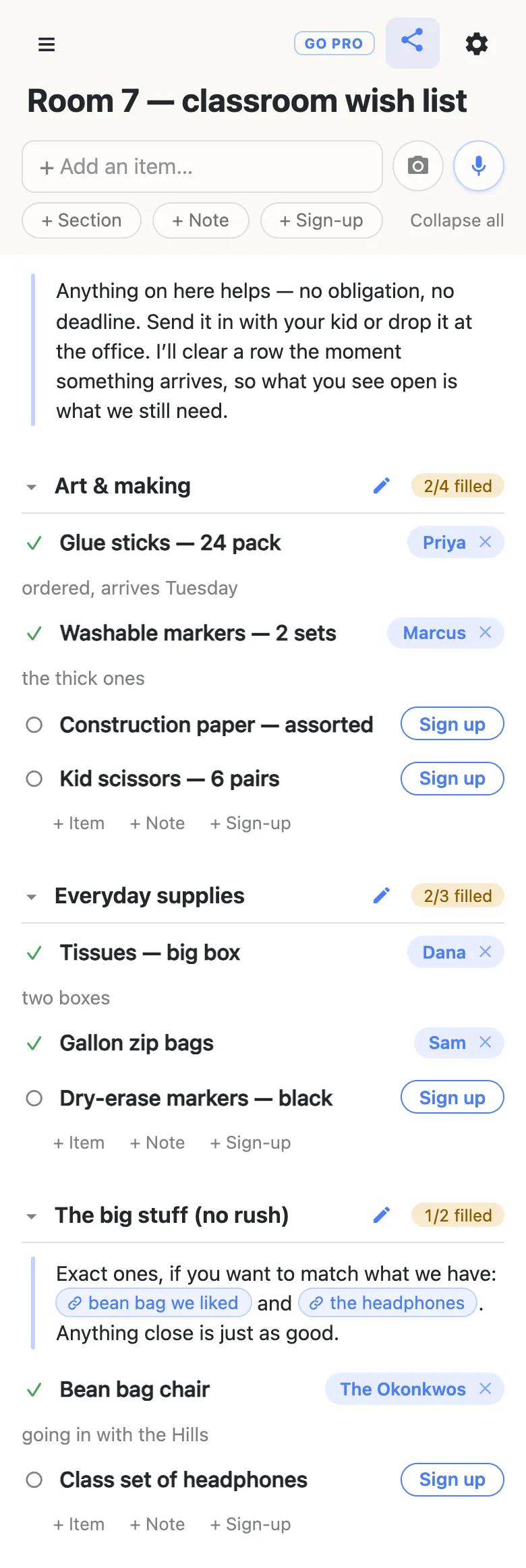
The row at the very top of that sheet is a note — a long-text block rather than a checkbox. It’s the right home for the sentence that makes a wish list feel like an invitation instead of an invoice: nothing here is expected, there’s no deadline, send it in with your kid or drop it at the office. Parents read it on the way to claiming something, which is the one moment they’re paying attention.
How a parent claims something
They tap the link — in the class thread, in the newsletter, on a card in the folder that goes home — and the wish list opens. No install, no sign-in, no “create a password to continue”. Next to anything still open there’s a Sign up button, and one tap puts their name on that row, live, for everyone else looking at it.
Then the sheet offers a note: “What are you bringing? (optional)”. That’s where “ordered, arrives Tuesday” or “only found the 12-pack, someone grab the rest” goes — attached to the thing it describes rather than lost in a reply to a reply. And the section counter moves the moment they’re done, so the next parent to open the link sees a smaller list of open rows than the last one did.
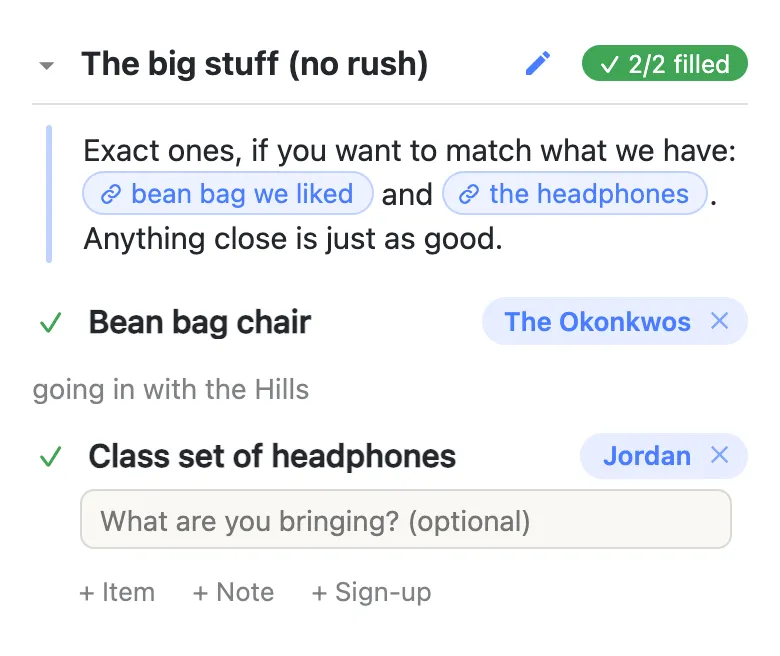
The name comes from whatever that device calls itself, set once and then forgotten about. There are no accounts underneath it, so nothing is verified and nothing is kept about them — a parent can be “Ada’s mum” if they’d rather. It’s a name on a sheet, the way it would be on a clipboard by the classroom door.
Where the exact product goes
Half of “can you send me a link to the one you want” is solved by writing a better row. The other half wants an actual web address, and that belongs in a note under the heading: paste a link into a note and it becomes a tappable chip, and you can name it, so parents read “the headphones” instead of forty characters of tracking parameters. Sign-up rows themselves are plain text, so keep the links in the note beside them.
Say plainly in the note that anything close is fine. A wish list that reads like a purchase order gets fewer answers than one that reads like a request.
What to do when things start arriving
The sheet is most useful in the week people are shopping, and slightly awkward the week after, when half of it has landed in your cupboard. Two habits work:
Make a section called Landed — thank you! and move rows into it as things turn up. Press and hold anywhere on a row for a moment and it lifts; drag it into the new section and let go. It leaves a visible record of who sent what, which is most of a thank-you note already written for you.
Or clear the row out: empty its text and press backspace, and the row goes, with about five seconds of undo behind it. After that it is gone for good — so on a sheet other people are reading, dragging is the safer habit and deleting is the one to be sure about.
Either way the link stays the same all year. In October you add “batteries, AA” to the sheet rather than sending a second note home that half the class never opens.
If it goes out to the whole school
Sending it to the whole school? You may want families to claim items without rewriting the list.
That’s what an owned list is for. The wish list stays yours, and you choose what visitors may do with it — leave signing up and claim notes switched on, turn adding, editing and deleting off, and it becomes fill-in-only. Nothing changes for parents: same link, still no account, still one tap. You can add a co-teacher or the room parent as an admin by email so you aren’t the only one who can fix a typo, and claim a readable address so the newsletter carries something a person could retype.
See what anonylist pro does Only you have an account. Everyone else still just opens the link.
Keep the wish list running smoothly
- Keep it to what it’s for. Glue sticks, tissues and the bean bag chair. Pupil names, medical details and family contact details stay in whatever the school already runs.
- Fold, don’t delete. Leave claimed rows where they are — the names on them are your thank-you list at the end of term.
- Keep the link handy. Text yourself the link the day you make it — your phone also keeps it in the ☰ drawer — and export a copy from the gear menu (Export & import) whenever you want a file of it.
Questions
- Can parents see what’s already been claimed?
- That is the whole point of it. A claimed row carries the name of whoever took it and a tick; an open row carries a Sign up button and a hollow circle. Each heading keeps a counter — 2/4 filled, 3/3 filled — so a parent opening the link on their phone in a shop aisle can see in about two seconds what nobody has picked up yet. It updates live, so two people looking at the same moment do not both claim the scissors.
- Where do I put the exact brand, size or a link to the product?
- Short specifics go in the row itself — “Glue sticks — 24 pack”, “Dry-erase markers — black”. For an actual web link, add a note under the section heading: notes are long-text blocks that turn a pasted address into a tappable chip, and you can name it, so a parent sees “the headphones” rather than a wall of URL. Sign-up rows themselves are plain text, so a link belongs in the note next to them, not in the row’s name.
- What do I do with a row once the supplies actually arrive?
- Two habits work. Make a section called something like “Landed — thank you!” and press-and-hold the row to drag it down there, which leaves a visible record of who sent what. Or clear the row out entirely: empty its text and press backspace, and it goes, with about five seconds to undo. After that it is gone for good, so dragging is the safer habit on a list other people are reading.
- Can I keep adding to the wish list through the school year?
- Yes — the link never changes, so anything you add appears for everyone who already has it. That is the practical difference from a printed list or a message sent home in September: in October you add “batteries, AA” to the sheet instead of sending a second note that half the class never sees. Save the link somewhere handy — the ☰ drawer on your own device remembers your lists too.
- Can a parent claim something without giving their real name?
- Yes. The name on a claim is whatever that device calls itself — a parent can set it to “Ada’s mum”, a surname, or keep the name the app generated for them. Nothing is verified and nothing is stored about them, because there are no accounts underneath it. It works exactly like a name written on a clipboard by the classroom door, with the same amount of trust.
Opens instantly. No account, no email.