A team snack schedule for the whole season
Last updated September 19, 2026
The season schedule turns up in one email in August: twelve games, two fields you have never heard of, and at least one date that will move before the first whistle. Somebody then has to turn it into a snack rota, and that somebody is usually holding a spreadsheet.
Most of the snack schedule templates you can download have the same flaw. They are a file. They are true on the day you send them and wrong by the first rain-out, and from then on there are four versions of the season in one group chat and no way to tell which is the current one. The chasing that follows is the actual work — not the making of the schedule, the maintaining of it.
A shared list is the same rota with that problem taken out. It is a link, not a file: one row per game, each carrying its own date, and parents put their own name on the game they can take straight from the link — on a phone, in the car park, without making an account. Move a rained-out game and every copy anybody has is already right, because there is only one copy.
Opens instantly. No account, no email — not for you, not for the parents.
Put the season in the way the league wrote it
You do not pick dates out of a calendar widget twelve times. You type each game roughly the way the schedule email says it, and the list offers you the date it found.
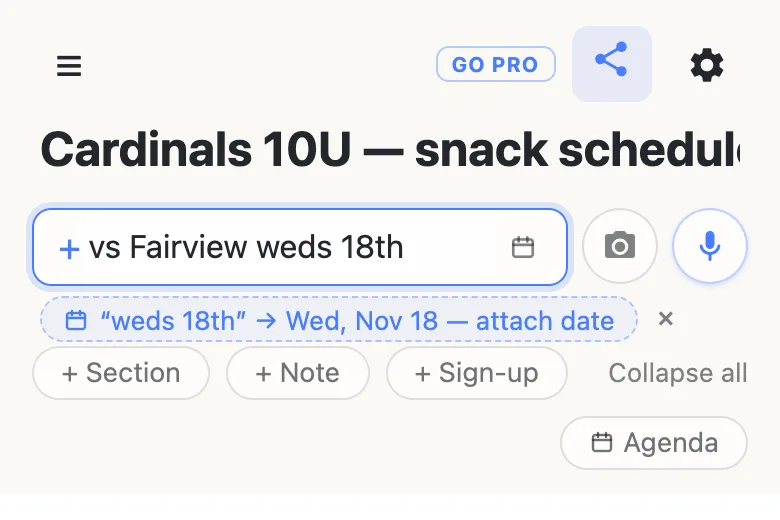
Tap the offer and the date becomes a chip pinned to the right-hand end of the row, and the words left in front of it are the ones worth reading: vs Fairview. Nothing is ever dated because software guessed — the offer sits there until a person taps it, and typing on past it dismisses it.
The formats it knows are the ones real schedules are written in. Weds 18th works, and the weekday and the number have to agree, so it lands on the week you meant rather than the nearest 18th. So do Oct 3, 10/3, the 19th, tomorrow and next Saturday. A start time rides along with the date when it is part of the same phrase — at Fairview sat 3rd 9am comes back as Sat, Oct 3 · 9am.
Two details worth knowing. A date at the front of the line keeps its words — “Weds 18th vs Fairview” stays exactly that, because eating the words would leave a row reading “vs Fairview” twice over. And if you would rather tap than type, an @ at the start of a word opens a small calendar with Today, Tomorrow and the next weekend on top. The times are plain wall-clock time: 9am means 9am at the field, with no timezone conversion applied to it, which is the only answer that is right for a thing happening in one place.
One row per game, one family per row
Add the games as sign-up rows — the + Sign-up pill under the add box — rather than plain checkboxes. A sign-up row shows a Sign up button until somebody takes it, and being taken is its state: there is no checkbox for a parent to tick on the way past, and no argument about whether a tick meant “I will bring it” or “I brought it”.
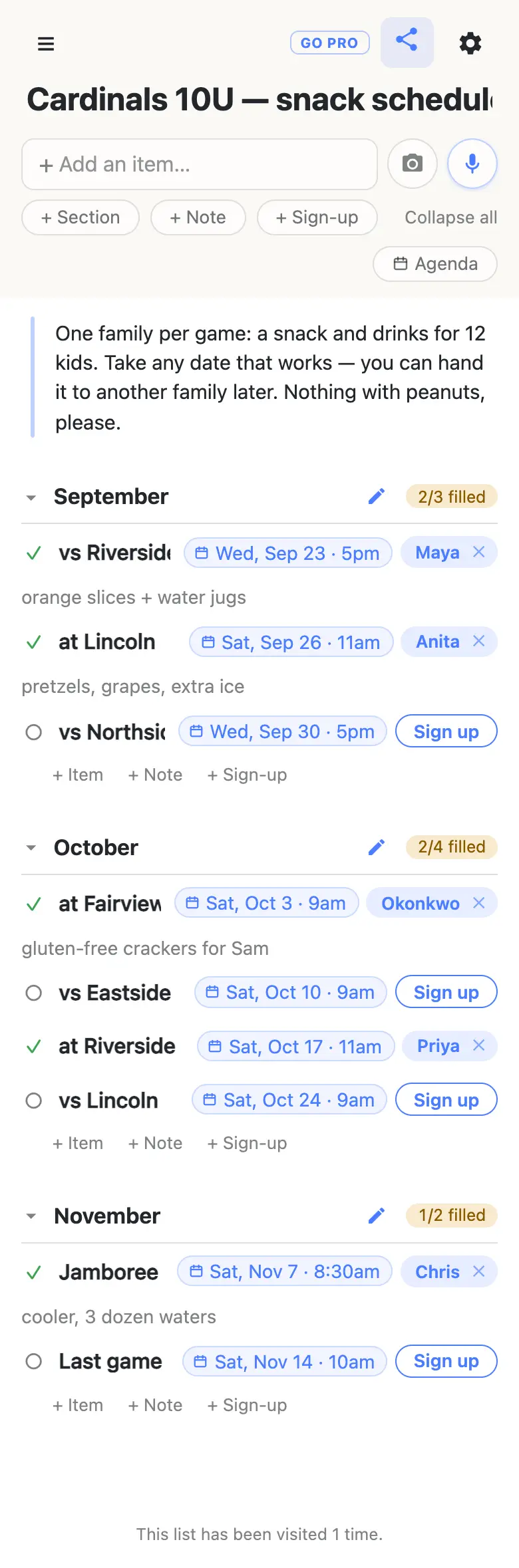
Months make good section headings over the top of those rows, and each heading counts its own games — 2/3 filled next to September is the whole status report, readable without opening anything. Put the standing instructions in a note at the top, where every parent reads them once: how many kids, what the league allows, nothing with peanuts.
A parent taps Sign up and their own name lands on the row. Tapping that name opens it for typing, which is how people sign up a spouse who is never going to open the link. The line under the row is theirs for the details — “orange slices + water jugs”, “gluten-free crackers for Sam” — and anyone can fix it later.
Nobody makes an account to do any of this, which is the difference between a sheet that fills up and a sheet you end up filling in yourself out of a group text. The one place the sheet stops anybody is the ✕: clearing somebody else’s sign-up asks first, and says that their note goes with it.
Read the season back as a schedule
Once rows carry dates, an Agenda toggle appears beside the add pills. It regroups the same rows under their dates — the next game first, each day its own heading, the games already played faded back — and sets the month sections aside while you are looking. Nothing moves and nothing is copied; it is the same sheet read the other way round.
The gear menu also carries a calendar feed: one subscribe URL that puts the dated rows into Apple or Google Calendar, including on the phones of parents who will never think to open a list. A taken game shows up as “vs Riverside — Maya”, with whatever they wrote as the description. An open one shows up as “OPEN — vs Riverside”, so the holes in your season are visible in your own calendar without you going and looking for them.
When the league moves a game
This is the part a printable cannot do. Tap the date chip on the row, pick the new day, tap Done.
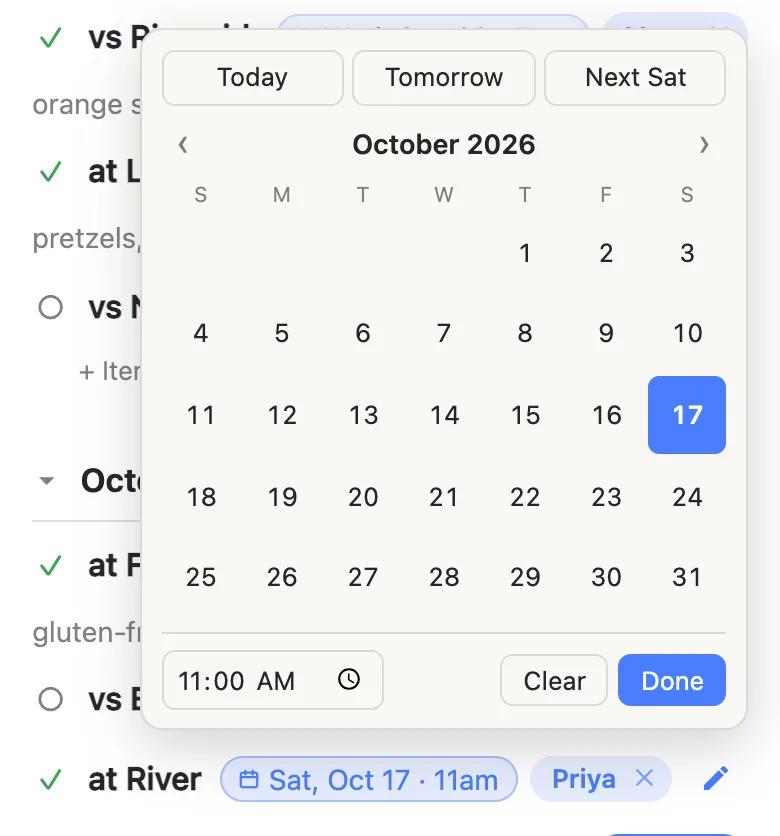
The family that took the game stays on it, their note stays underneath, and the row keeps its place in the month. Everyone holding the link sees the new date the moment you tap — including anyone with the sheet open in front of them right now, whose row changes as they watch. Clear in that panel takes the date off without touching the row, for the game that gets cancelled outright rather than moved.
Changing a date changes it once, for everybody. That is the entire argument for doing this on a link instead of in a file, and it is worth about six group-chat messages a season.
Next season, same sheet, same link
A snack rota is the same shape every year and different in every detail, so the sheet is worth keeping and the contents are not. Two ways to turn it over, both of them in place — you never hand out a new link:
- Clear it row by row. The ✕ beside each name empties that row back to open, and the date chip walks the row forward to next season’s game. Ten or twelve rows is a couple of minutes, and it leaves the structure you already got right exactly as it is.
- Or keep a copy of the empty sheet. Gear → Export & import downloads the whole list as a file. Do it the day you build the sheet, before anybody signs up, and that file is your blank. Next season, import it with Overwrite ticked: the button turns red and reads “Replace with 13 rows”, and it deletes everything on the list first, for everyone, with no undo. It asks you to confirm for exactly that reason.
The same two moves work mid-season for a sheet that resets more often than yearly — there is a guide to running a recurring sheet that goes through it properly. And keep that export somewhere of your own if the record matters to you after the season: a list can be removed after a long stretch with nobody opening it, and a file on your own disk cannot.
When the link goes out past the team
A sheet that lives in a team group chat is safe in the ordinary way: everyone holding the link can edit it, and everyone holding the link is a parent on the team. Put the same link in a club-wide newsletter or on a flyer at the concession stand and that stops being true — you want signing up to stay wide open, and you do not want somebody tidying the November section away in October.
That is what owning the list is for. The sheet stays yours and you choose what visitors may do: leave signing up on so any parent still claims a game in one tap, and turn adding, editing, deleting and reordering off. Add the assistant coach as an admin by email so there are two of you running it, claim a readable address for the flyer, and when the season ends, hand the whole thing to next year’s team parent without the link changing.
See what anonylist pro does Only you need an account. The parents still just open the link.
Questions
- Is this a snack schedule template I can print?
- Not really, and that is the point of it. A downloaded template is a file that stops being true the moment a game moves — every parent is holding a different version of it by October. This is a link instead: one sheet, live, the same for everyone who opens it. You can print the page from your browser if you want something for the dugout fence, and the gear menu will export the whole sheet as a file you keep, but the copy people actually sign up on is the link.
- Should each game be a row, or each month?
- One row per game, so exactly one family is responsible for exactly one date. Months make good section headings over the top of those rows: a twelve-game season reads as three short groups rather than one long column, and each heading counts its own games — “2/3 filled” beside September tells you where the gaps are without opening anything. Sections can be whatever splits your season sensibly; some teams use “Home” and “Away” instead.
- Next season has different dates — do I start over?
- No, and you keep the same link, which is the part worth keeping. Tap the date chip on a row, pick next season’s day, and the row is re-dated for everybody at once; clear the names with the ✕ beside each one and the sheet is empty and ready. If you would rather not tap through twelve rows, export the sheet as a file while it is empty and import that file next season with Overwrite ticked — it deletes what is on the list first, for everyone, and there is no undo on that.
- Can one family take two games?
- Yes — nothing stops the same name appearing on as many rows as they are willing to cover, and on most teams two or three families quietly take the awkward weeks. Each row holds one name, because the counter beside the month is counting games that are covered rather than people who volunteered. If a tournament genuinely needs two families, make it two rows and each can carry its own note.