A babysitter information sheet you send as a link
Last updated September 28, 2026
Every parent has written the babysitter sheet. Numbers on the back of an envelope, the allergy underlined twice, bedtimes in the margin, a note stuck to the fridge that the sitter reads once at the door and then can’t find at 9pm. Next time you write it again, slightly differently, and the pediatrician’s number is still the old one.
On anonylist the babysitter information sheet is one link. You write it once, text it to the sitter, and it opens in the browser on their phone — no app, no account, nothing for them to sign up to. Tonight’s jobs are checkboxes they tick as they go, and because the sheet is live, you can see the evening happen from the restaurant without texting to ask.
Opens instantly. No account for you or the sitter.
What goes on a babysitter information sheet
The same things every good one has, grouped by how urgently the sitter needs them:
- Emergency first: your numbers, where you’ll be and until when, the home address to give 911, a nearby adult who can come over, and any allergy or medical need, with where the medicine is kept.
- Tonight: the jobs for this evening — dinner, bath, homework, bedtimes, locking up.
- Routines: how bedtime actually goes for each child, and what to do when one of them wakes.
- House rules and where things are: screens, snacks, the first-aid kit, the thermostat.
- A space for the sitter: somewhere to tell you how it went.
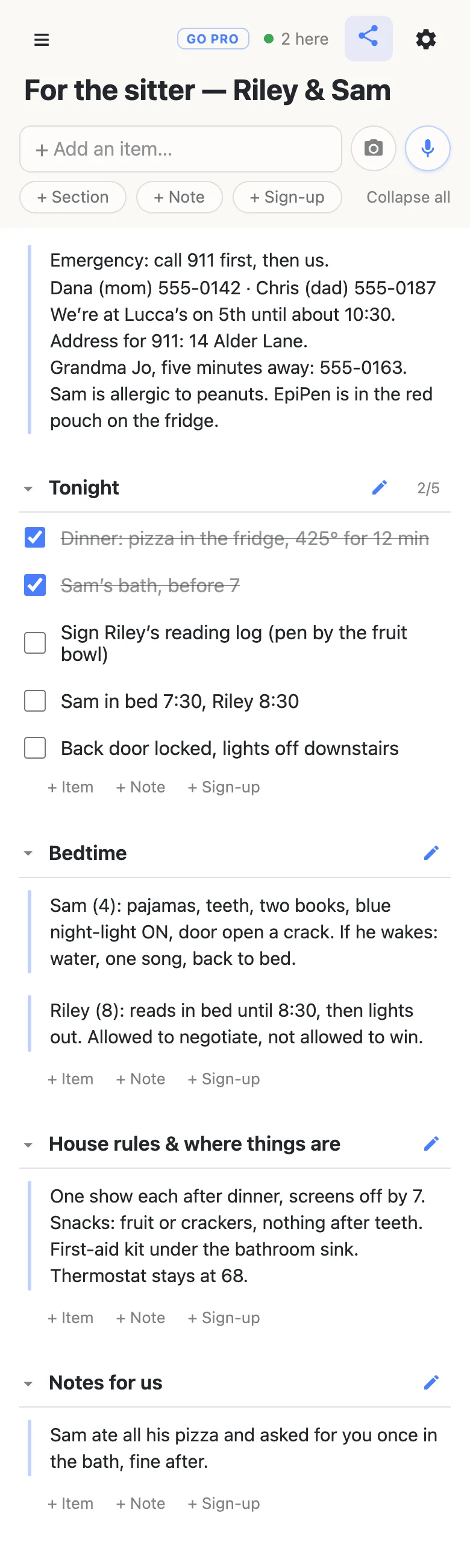
Here is that sheet built on anonylist, the way the parent sees it:
How to build it
- Name the sheet. Tap the title and call it something the sitter will recognise in their browser tabs — For the sitter — Riley & Sam.
- Put the emergency details in a note, at the very top. Tap + Note under the add box. A note is a block of text rather than a checkbox, and Enter starts a new line inside it, so a whole contact card fits in one row.
- Add a section for tonight. Tap + Section, call it Tonight, and type the evening’s jobs with the quiet + Item link at its foot. Enter starts the next one.
- Add sections for the rest. Bedtime with a note per child, House rules & where things are, and an empty Notes for us for the sitter’s report. Use each section’s own + Note link.
Web links work inside the sheet: paste a map link to where you’ll be, or the pediatrician’s page, and it becomes something the sitter can tap. Organizing a list with sections covers moving and folding sections in more detail.
Why the emergency note goes above every section
A sheet looks different on a phone opening it for the first time. The sitter taps your link, sees a short welcome that asks what to call them (they can skip it), and then the sheet — with every section folded shut. That’s the app keeping a long list readable on a first visit. Only the rows above the first section are open.
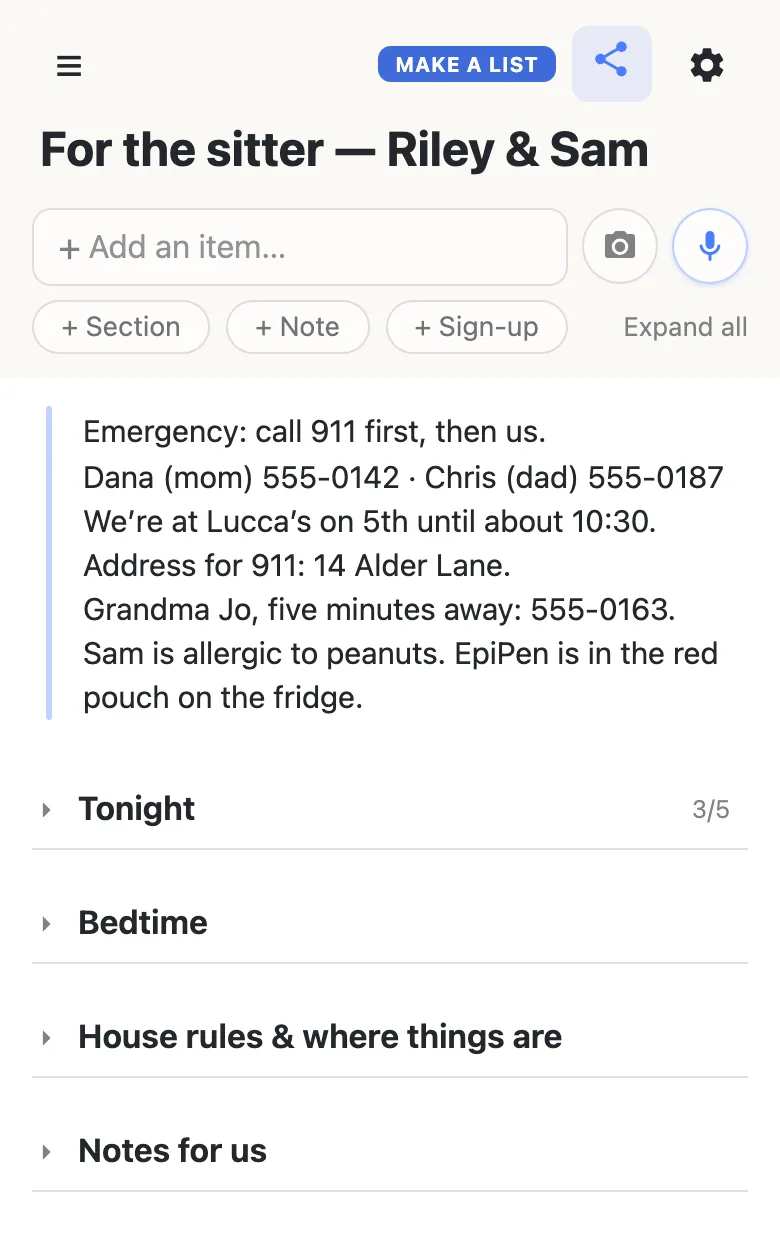
That is exactly where the emergency details belong — the one thing on the sheet that must never be behind a tap. Everything else is a heading away: the sitter taps Tonight to open it, or Expand all to open the lot. Their phone remembers what they opened, so next time it looks the way they left it.
Hand it over with one text
Tap the share button at the top of the sheet and send the link however you already talk to the sitter — a text is fine. They need nothing installed and no account; the link opens in Safari, Chrome, whatever their phone has. Send it the afternoon before rather than at the door, so they can read it before the kids are hanging off them.
The link keeps working. The sheet also lands in the app’s drawer on their phone, the list of sheets that device has opened, so a sitter who comes every Friday finds it again without scrolling back through messages.
Watch the evening tick by
Tonight’s jobs are checkboxes, and the sitter ticks them as they go. Ticking asks once — Check off “Sam’s bath, before 7”? — because a ticked row’s wording is frozen for everybody until it’s unticked, which keeps a stray tap from rewriting anything. The section counts itself as it goes: 2/5, then 3/5, and green when it’s all done.
You see each tick the moment it happens, from wherever you are, just by having the link open. The sheet shows how many people are on it (2 here), and when the sitter writes in Notes for us, their name appears beside the row they’re typing in:
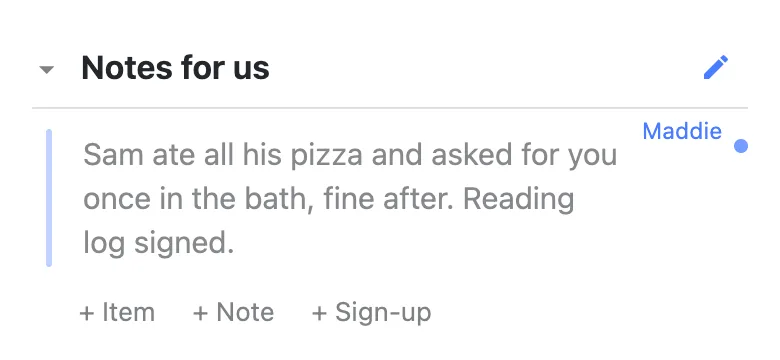
That replaces most of the “all ok?” texts. Nothing pings you, though: the sheet has no accounts, so it has nowhere to send a notification. If you want to know, you look.
Next time, reset it in place
There’s no new sheet to write. Untick tonight’s jobs — unticking never asks, so it’s a quick run down the list — change what’s different this time (a later bedtime, a different restaurant), and clear out the sitter’s last report. The link stays the same, so a regular sitter already has it and a new one gets the same text you always send. Nothing on the sheet expires or rolls over on its own.
If both parents keep it up to date, even better. It’s one sheet, and whoever notices the old number fixes it for everyone.
What not to put on it
Treat the link like a key. On a free sheet, anybody holding the link can read it and change it — that is what lets the sitter open it with one tap and nothing else. So it’s fine for the things a sitter needs and a stranger couldn’t do much with, and wrong for the things you’d never write on the fridge: the alarm code, the door code, where the spare key is, bank or insurance details. Tell the sitter those in person.
You can put a password on a sheet from the ⚙ settings. Each new phone then has to enter it once before seeing the sheet, which is worth it if the link might travel further than the sitter. But a password is a gate on the link, not a vault: anyone you give both to can read everything. The sheet is still something you hand over, not something you keep.
When you’d rather the sitter couldn’t rewrite it
For most families the open sheet is right: the sitter ticks, writes a note, and nothing else happens to it. If the sheet goes to a rotating cast — a babysitting co-op, three grandparents, a new sitter every month — you may want the routines to stay exactly as you wrote them. anonylist pro lets you own the sheet and choose what visitors can do: leave ticking and adding notes on, and switch off editing and deleting, so a sitter can tick jobs and leave a new note for you but can’t change the bedtime routine. How the permission switches work goes through each one.
Questions
- What should be on a babysitter information sheet?
- Emergency details first: your phone numbers, where you will be and until when, the home address to give 911, a nearby adult who can come over, and any allergies or medical needs with where the medicine is kept. Then tonight’s jobs, each child’s bedtime routine, house rules like screens and snacks, where the first-aid kit is, and a space for the sitter to tell you how the evening went.
- Does the babysitter need an app or an account to open it?
- No. The sheet is a web link, so it opens in whatever browser is on the sitter’s phone, with nothing to install and nothing to sign up for. The first time, it asks what to call them, and they can skip that too.
- Is it safe to put our address and phone numbers on it?
- Anyone holding the link can read the sheet, so share it the way you would share a key: with the sitter, not in a public post. Numbers and the address to give 911 are what a sitter needs, and a stranger could do little with them. Never put an alarm code, a door code or where the spare key is on it. A password makes each new phone enter it once, but it is a gate on the link, not privacy — anyone given both can read everything.
- Can I use the same sheet every time we go out?
- Yes, and that is the point of it. Untick tonight’s jobs, which never asks for confirmation, change whatever is different this time, and clear out the last report. The link stays the same, so a regular sitter already has it and the sheet also sits in the drawer on their phone.
- Will I get a notification when the sitter ticks something off?
- No. The sheet has no accounts, so there is nowhere to send one. Instead, keep the link open: every tick and every line the sitter writes appears on your screen the moment it happens, and the sheet shows the sitter’s name beside anything they are typing.